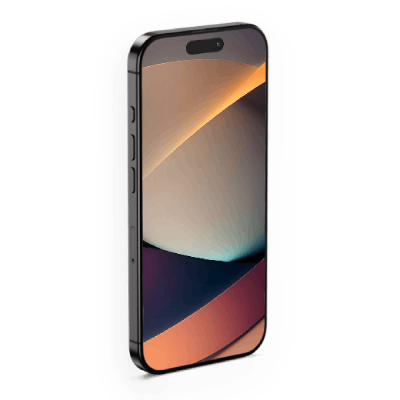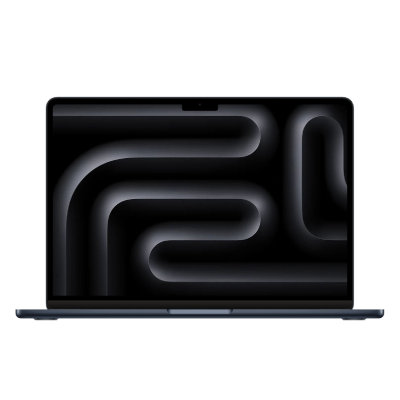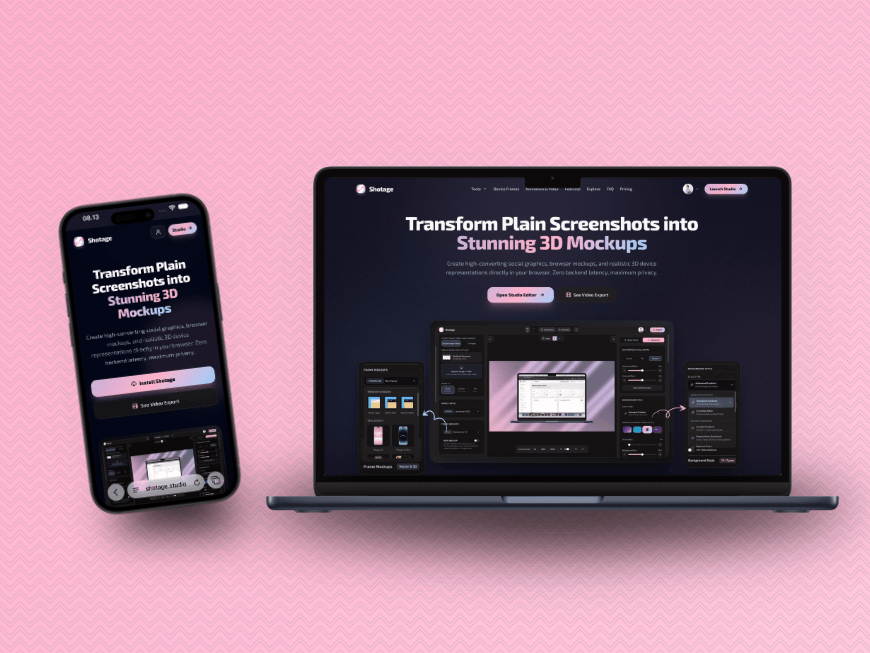
iPhone + Macbook Air mockups
Show your mobile app alongside the desktop dashboard. A useful pairing for SaaS launches, product pages, and app presentations.
TWO SCREENS. ONE STORY.
Your mobile app and desktop experience belong together. Put both screenshots in one scene with a different frame for each, right in your browser.
Create your multi-device mockupStart designing free · 100 welcome export credits when you sign in
PICK YOUR PAIRING
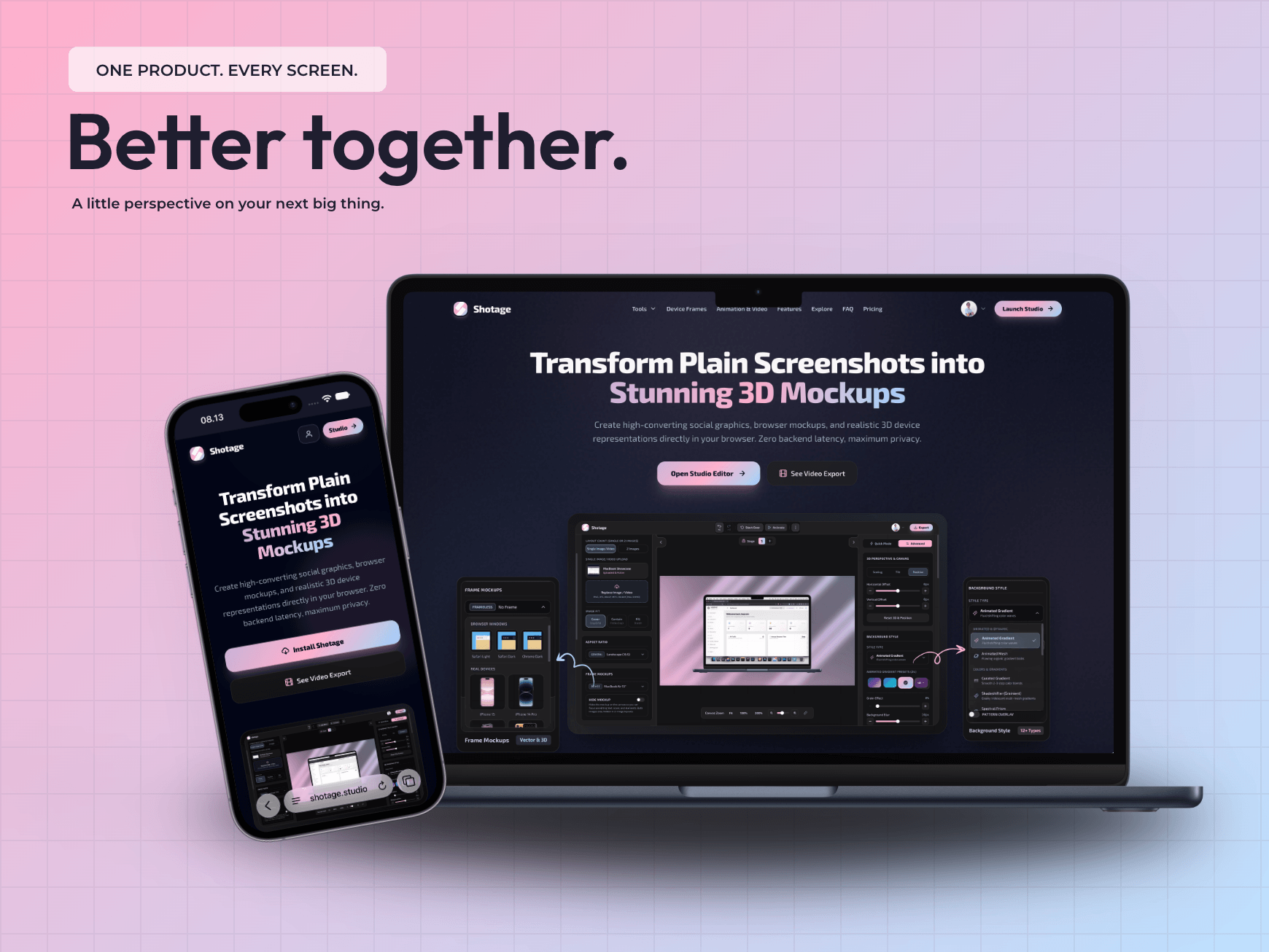
Choose a different frame for each screenshot to tell your product’s story.
Show your mobile app alongside the desktop dashboard. A useful pairing for SaaS launches, product pages, and app presentations.
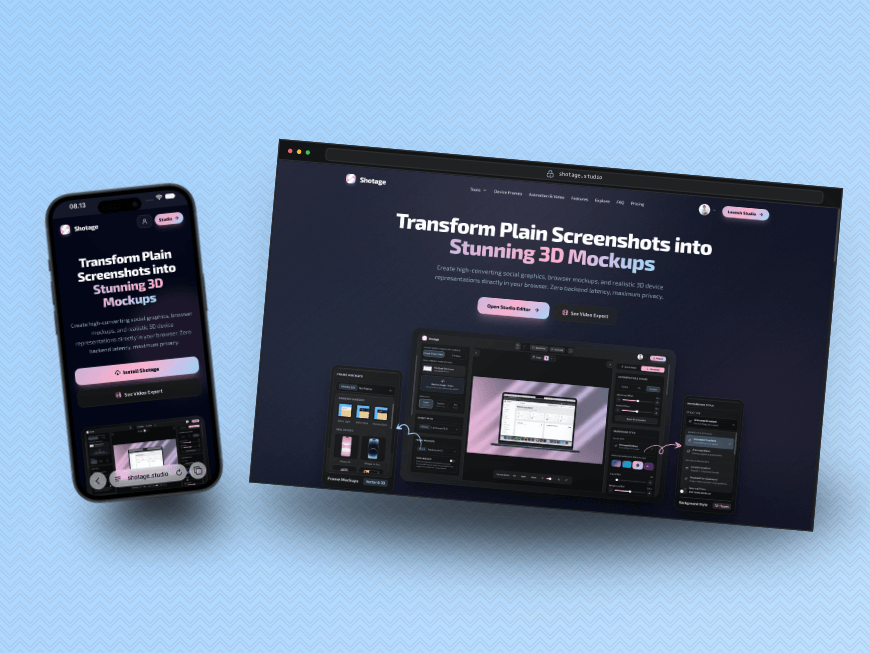
Present the mobile and desktop screenshots of your website side by side. Give a responsive design a clear place in your portfolio.
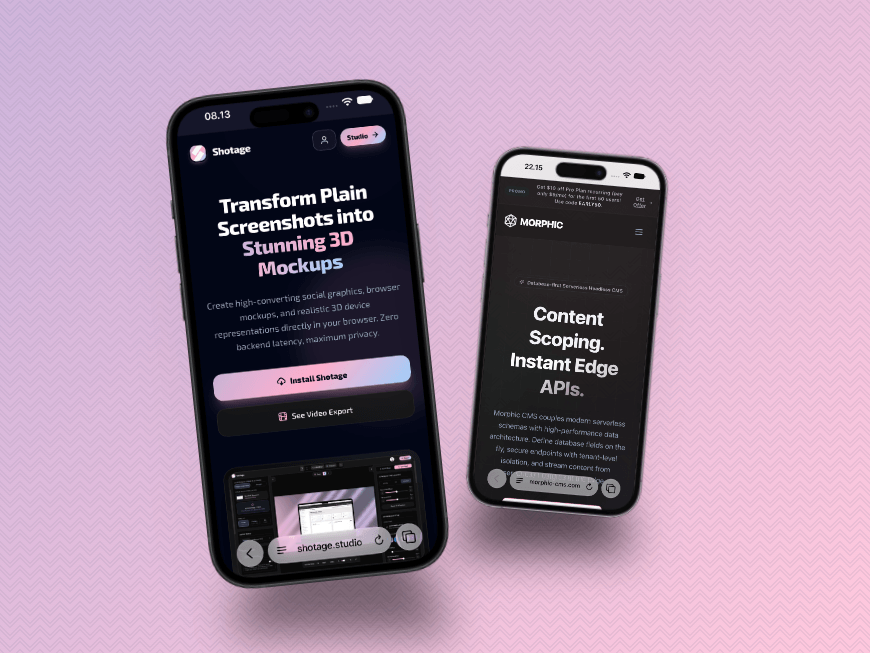
Compare two app screens, show a flow, or pair different phone frames. Keep the focus on the details that make your app work.
Choose each frame in Studio
ONE CANVAS. INDIVIDUAL CONTROL.
Choose a frame and its appearance for each image. Adjust positioning, scale, and 3D tilt to give the two screens a balanced composition.
Then connect the design with a shared background, a short headline, or a few custom shapes. Want matching frames instead? Apply one image’s frame settings to both.
Try independent frames in StudioFROM SCREENSHOTS TO A SCENE
You bring the screenshots.
Shotage brings them together.
Open Studio, choose the 2 Images layout, and add the mobile and desktop screens you want to present. Use screenshots captured at the screen sizes you want to show.
In Frame Mockups, select Image 1 and pick a phone, laptop, or browser frame. Switch to Image 2 and choose its frame independently.
Try a side-by-side, overlapping, or stacked layout. Adjust the placement, background, shadows, and text to suit your product.
Choose PNG, JPEG, or WebP for a still image, or add motion for a video. Review the resolution and credit cost, then export for your website, portfolio, or social post.
MADE FOR THE REVEAL
Introduce your mobile app and web dashboard together, with one visual for a launch page or announcement.
Put desktop and mobile website screenshots in a coordinated scene for a client presentation or case study.
Help people see how your interface works across screens, without making them open multiple images.
BEFORE YOU START
Looking for a single-screen composition? Explore the online mockup generator, or check export credit pricing.
A multi-device mockup presents two screens in one composition, such as a mobile app on a phone beside its desktop dashboard on a laptop. It helps you show how your product looks across devices in a single image or video.
Yes. Enable the 2 Images layout in Studio, then open Frame Mockups. Select Image 1 or Image 2 and choose its frame independently. You can combine an iPhone with a MacBook, mix a phone and a browser frame, or leave one image frameless. Use Apply to both when you want matching frames.
No. Upload the screenshots you want to show for each screen. Shotage presents your images in mockup frames; it does not resize your live website or generate a responsive version of its interface.
The two-image layout supports two main screenshots with independent mockup frames. You can add text and shapes to the same canvas to build your presentation.
You can start designing in your browser for free. Sign in to receive 100 welcome credits for exports. Image and video exports use credits, and the cost is shown before exporting. Additional credits are available as one-time packs. Shotage does not require a watermark on your exports.
Yes. Export a still image as PNG, JPEG, or WebP. You can also add motion and keyframes in Studio and export a video. Choose your output settings and review the credit cost before exporting.
ONE PRODUCT. MORE PERSPECTIVE.
No installation needed. Exports use credits. See pricing